
Before you press play.
A browser link can lead to a demo, a multiplayer port, a fan adaptation or a setup screen. Start with the version and requirements, then choose your next step.
Why these games use the Radiant name
The Radiant Optimizer account shared a browser-games post and a separate list of third-party links on October 8. Our games directory follows that reply. The Windows utility changes supported PC settings; the listed projects run the games. Buying Premium does not include their original game files or servers.
Primary references: the post and the links reply.
Choose the right kind of entry
| Entry type | What to check | Example in this collection |
|---|---|---|
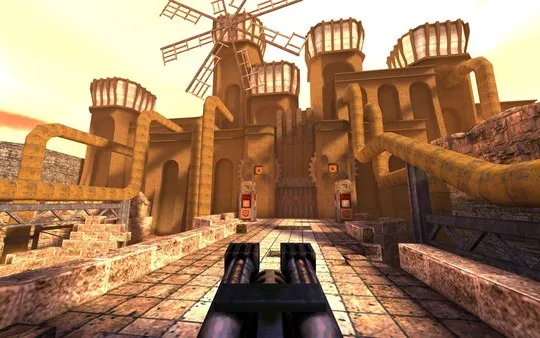
| Multiplayer project | Available modes and servers; a campaign may not be included | QuakeWorld |
| Own-data setup | Exact release and file format required | Halo CE Mobile |
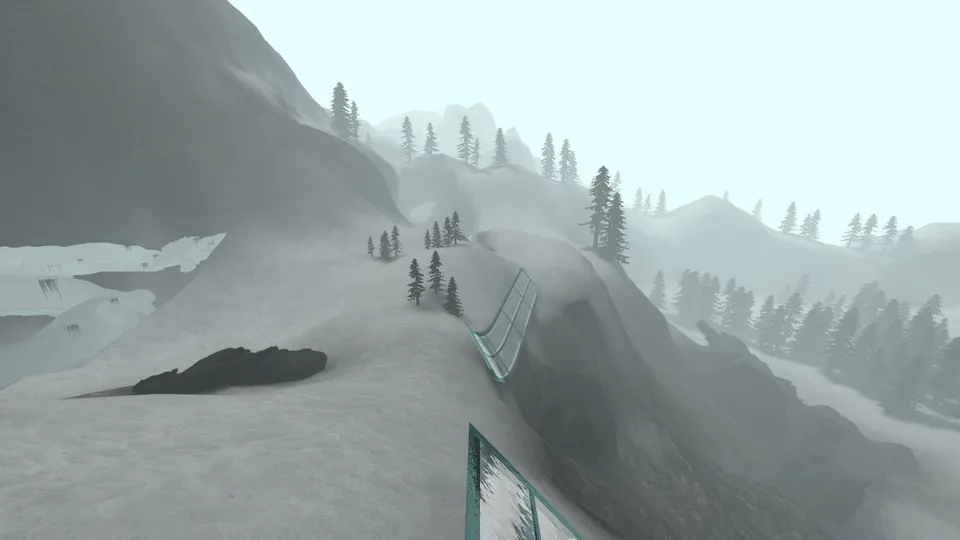
| Fan adaptation | Which assets, maps and mechanics differ | Skate 3 fan game |
| Archive | Historical context only; scripts and assets may not survive | GTA 5 source link |
Your first session
- Read the entry noteCheck the project identity, dated status and whether your own files are needed. Use the original source link to resolve a naming mismatch.
- Prepare the deviceUse the browser and input devices documented by that project. Do not assume a desktop game supports touch or a controller.
- Allow time for dataBrowser play can still transfer substantial game data. Read the loader and storage prompt. Avoid reloading repeatedly while progress is advancing.
- Check controls and savingFind the project’s help or settings. Before a long session, check whether progress can be exported and whether deleting site data removes it.
If a game will not load
| What you see | Next step |
|---|---|
| Missing game data / file picker | Confirm the requested edition and archive format. A console image, PC folder and save file are not interchangeable. |
| Unsupported graphics or browser message | Read the exact feature named by the host and its supported-browser instructions. An optimizer license does not unlock browser graphics support. |
| Download stops or a blank canvas | Keep the URL and message. Check the host’s status or help; try again later if it reports a server problem. Do not infer the cause from a blank screen alone. |
| Certificate warning | Stop at the warning. Return to the original project’s announcements for a corrected address. |
| Mouse or controller does not respond | Check that project’s focus, capture and input settings. Follow its documented exit key before switching tabs. |
| Saved progress disappears | Check the browser/profile used and the project’s export/import instructions before clearing any more site data. |
What our checks cover
We checked published destinations and available instructions. We did not complete gameplay sessions or test performance, save durability or multiplayer reliability. The original reply also warns that some entries require your own data. We do not provide copies of commercial game files, launchers or access restrictions workarounds.
For a broken entry, send its directory name, host URL and exact error to support@radiantoptimizer.dev. We can correct the guide; only the project operator can fix its service.
 Browser games
 Browser games
 Browser games